How to update the HTEM5 Firmware
Download the latest Firmware
Click this link to download the latest HTEM5 Firmware.
Logging into the HT-EM5 GUI
STEP 1 Connect the HT-EM5 Adapter to a Windows PC or MAC using an Ethernet cable, plug one end of the Ethernet cable into the adapter and the other end into a Windows PC or MAC. Power on the adapter by plugging in the power supply provided.
STEP 2 Make sure that the PC/MAC is on the same network as the HT-EM5. Before you log into the HT-EM5’s GUI, your computer’s IP address must be in the same subnet at the HT-EM5. This allows your computer to communicate with the HT-EM5.
NOTE: You can find the HT-EM5’s assigend IP address by logging into your network’s gateway device and looking at the list of connected DHCP client devices. The HT-EM5 hostname will display as REV_A1000000.
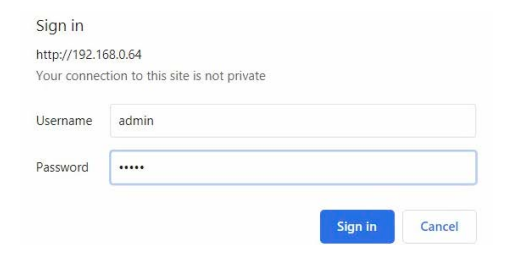
STEP 3 Log into the HT-EM5 Adapter. Now open a web browser and type in the IP address of the HT-EM5 device in the URL bar. A pop-up will appear prompting you to sign in. Enter admin for the Username and admin for the Password. Click Sign in.
Admin
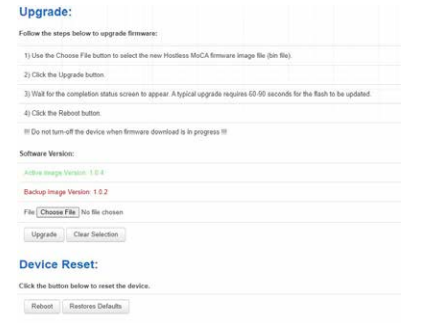
Use this screen to perform the firmware upgrade, and reboot or reset the HT-EM5.
Click Admin. The following screen displays.
Upgrade
STEP 4 Click Choose File to select the new firmware.
STEP 5 Click Upgrade to perform a firmware upgrade.
